Orchestrator
What it is
The Orchestrator is the primary jobs workspace in JobOps.
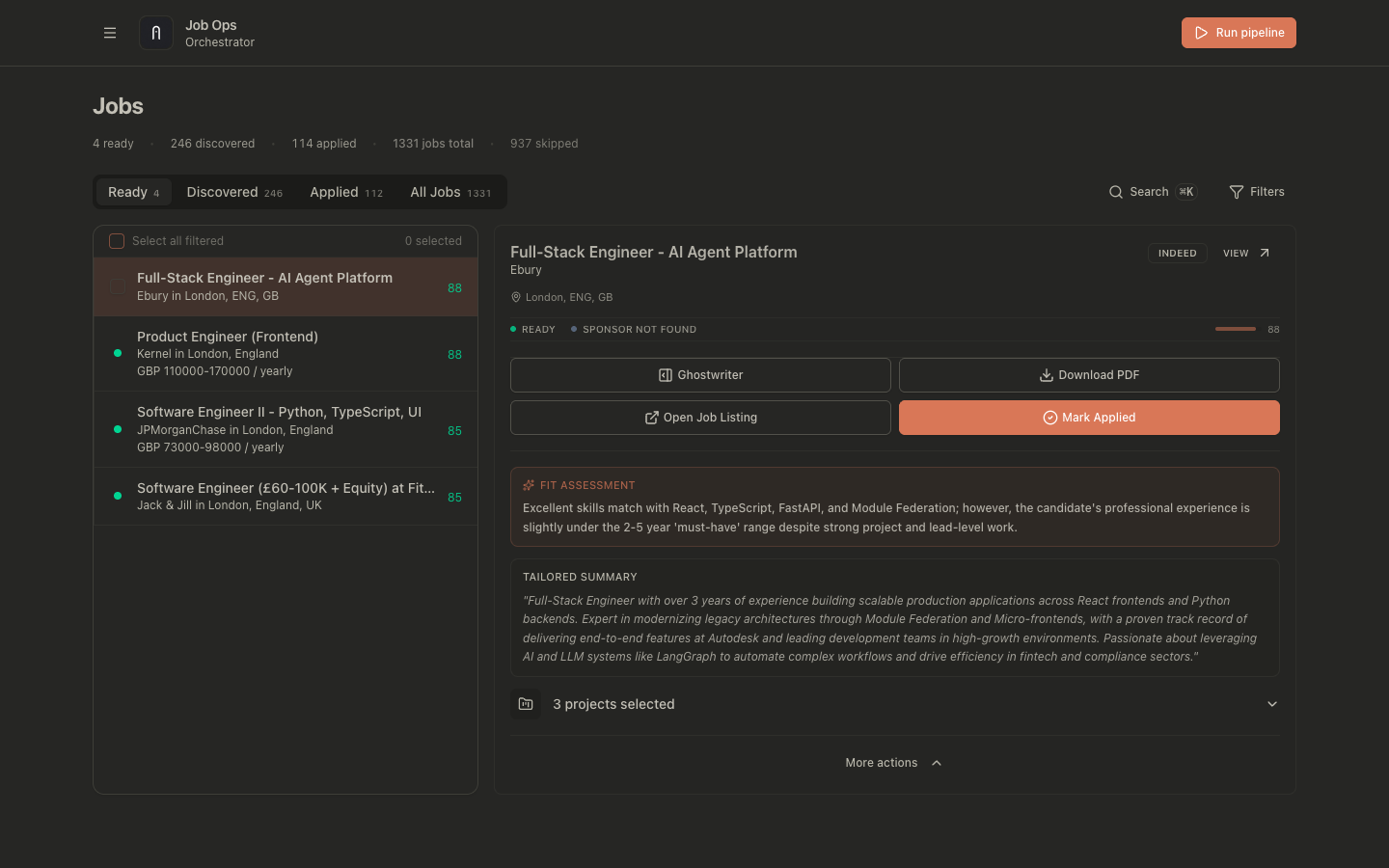
It controls:
- job lifecycle states
- manual and automatic ready flow
- PDF generation and regeneration
- handoff to post-application tracking
Job states:
discovered: found by crawler/import, not tailored yetprocessing: tailoring and/or PDF generation in progressready: tailored PDF generated and ready to applyapplied: marked as appliedskipped: explicitly excluded from active queueexpired: deadline passed
Why it exists
Orchestrator centralizes the transition from discovered opportunities to application-ready artifacts.
It exists to ensure:
- a consistent path from discovery to tailored output
- clear status transitions across manual and automated workflows
- predictable regeneration behavior when job data changes
- faster external research from the Ready tab with prebuilt search links for LinkedIn, GitHub, and broader web results
How to use it
Intended ready flow
- Manual flow:
- Job starts in
discovered. - Open the job and choose Tailor.
- Edit JD/tailored fields/project picks.
- Click Finalize & Move to Ready.
- Job starts in
- Auto flow:
- Pipeline scores discovered jobs.
- Top jobs above threshold are auto-processed.
- Jobs move directly to
readywith generated PDFs.
Ghostwriter availability
Ghostwriter is available in discovered and ready job views.
For details, see Ghostwriter.
Ready tab search links
In the ready view, JobOps can show prebuilt search links based on the current job's employer, title, and skills.
This enables you to:
- quickly open Google searches for likely LinkedIn profiles tied to the company and target skills
- search GitHub for matching public profiles or repositories without rewriting the query yourself
- run a broader web search to gather context before applying
Open the search links row in the Ready summary to reveal the generated links.
Opening documentation from the sidebar
- Open the sidebar menu.
- In the footer section under
Version <build>, click Documentation, which opens the locally hosted docs in a new tab.
Generating PDFs
PDF generation uses:
- base resume selected from RxResume
- job description
- tailored summary/headline/skills/projects
Common paths:
- Discovered to finalization:
POST /api/jobs/actionswith{ "action": "move_to_ready", "jobIds": ["<jobId>"] } - Ready regeneration:
POST /api/jobs/:id/generate-pdf
Regenerating PDFs after edits (copy-pasteable examples)
If JD or tailoring changes, regenerate PDF to keep output in sync.
curl -X PATCH "http://localhost:3001/api/jobs/<jobId>" \
  -H "content-type: application/json" \
  -d '{
    "jobDescription": "<new JD>",
    "tailoredSummary": "<optional>",
    "tailoredHeadline": "<optional>",
    "tailoredSkills": [{"name":"Backend","keywords":["TypeScript","Node.js"]}],
    "selectedProjectIds": "p1,p2"
  }'
curl -X POST "http://localhost:3001/api/jobs/<jobId>/summarize?force=true"
curl -X POST "http://localhost:3001/api/jobs/<jobId>/generate-pdf"
External payload and sanitization defaults
- LLM prompts send minimized profile/job fields.
- Webhooks are sanitized and whitelisted by default.
- Logs and error details are redacted/truncated by default.
- Correlation fields include
requestId, and when availablepipelineRunIdandjobId.
Common problems
Job is stuck in processing
processingis transient; failures generally revert the job todiscovered.- Check run logs and retry generation.
PDF does not reflect recent edits
- Run summarize with
force=trueafter changing the JD/tailoring. - Regenerate PDF after summarize completes.
Reopen skipped/applied jobs
- Patch
statusback todiscoveredto return the job to the active queue.